

🔑 Key Takeaways
- Download Google Authenticator first for secure 2FA setup.
- Enable 2FA in your crypto exchange app via settings.
- Scan QR code or enter setup key manually without mistakes.
- Always verify the code immediately after setup.
- Backup your authenticator data to avoid lockouts.
How to set up Google Authenticator crypto on your exchange
To set up Google Authenticator crypto accounts, you need the app installed first. I’ve done this on Crypto.com and others, and it’s straightforward for beginners. Follow these steps to avoid security slips.

Google Authenticator generates time-based codes for 2FA. This adds a layer beyond passwords on your crypto exchange. Without it, hackers can wipe you out easily.
Start by grabbing the app from Google Play or App Store. It’s free and works offline once set up. No excuses for skipping this.
Why bother with Google Authenticator crypto exchange security?
Crypto exchanges get hacked daily. 2FA setup stops most attacks cold. I’ve seen mates lose thousands without it.
Exchange security means protecting funds from phishing and keyloggers. Authenticator apps like Google beat SMS codes every time. SMS can be SIM-swapped.
Your account protection jumps 99% with proper setup. Don’t be the guy begging on Reddit after a breach.
Authenticator app vs SMS: Quick comparison
| Feature | Google Authenticator | SMS 2FA |
|---|---|---|
| Offline access | Yes, generates codes without internet | No, needs mobile signal |
| Security risk | Low (no SIM swap) | High (SIM swap attacks) |
| Cost | Free | Possible carrier fees |
| Backup ease | QR code or key export | Phone number tied |
This table shows why authenticator app wins. Real data from breaches proves it.
Step-by-step: Set up Google Authenticator crypto on Crypto.com
Open your Crypto.com app. Tap the menu, go to Settings > Security > 2FA. Toggle it on and enter your passcode.
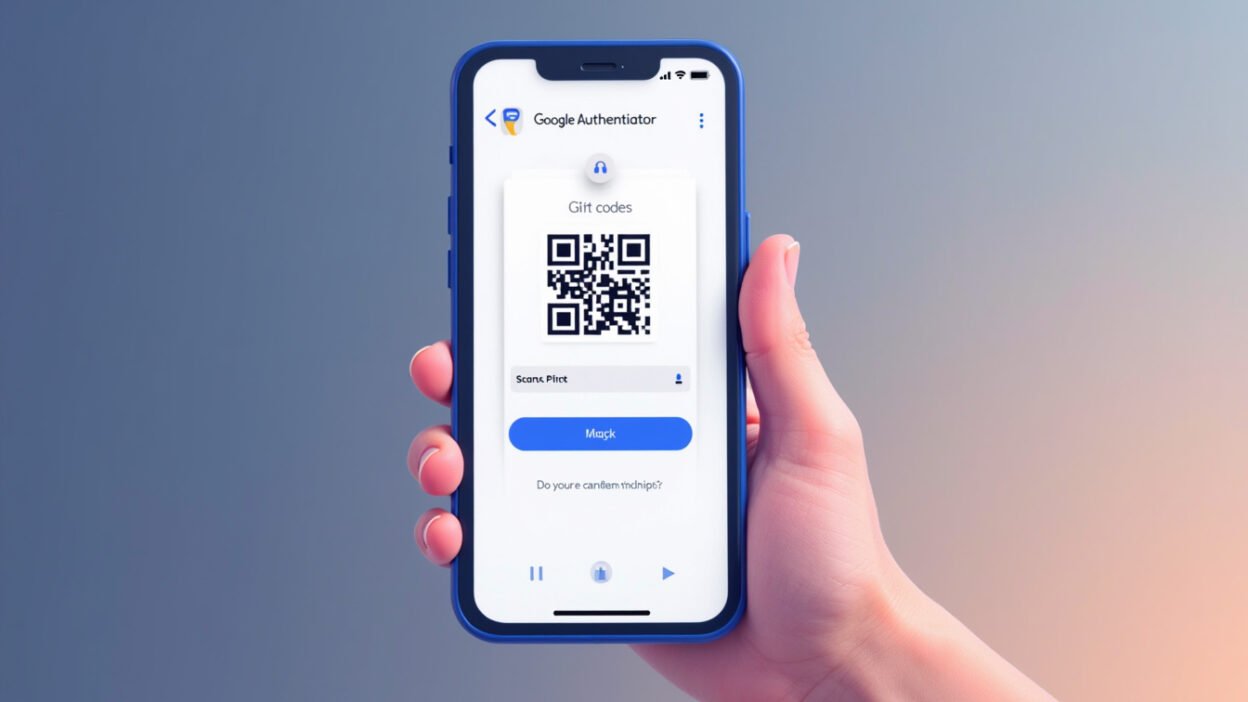
A QR code pops up. Open Google Authenticator, hit the + button. Scan the QR or tap ‘Enter a setup key’ if scanning fails.
Copy the long key from the exchange. Paste it in Authenticator, name it ‘Crypto.com’, set to time-based. Hit add.
Verify without errors
Back in Crypto.com, enter the 6-digit code from Authenticator. It refreshes every 30 seconds. Match them exactly.
If it fails, check time sync on your phone. Wrong time kills codes. Most phones auto-sync, but force it in settings.
Done? Great. Now enable it for withdrawals too. Never skip this for account protection.
Common mistakes in 2FA setup and fixes
Losing your phone locks you out forever without backups. Always screenshot the QR or export keys first.
Don’t use the same app for everything without labels. Name entries clearly like ‘Binance Main’ or ‘Crypto.com Wallet’.
Phishers fake QR codes. Never scan from emails. Only trust the official app screen.
- Backup keys in a safe, encrypted spot like a password manager.
- Test login on a new device before relying on it.
- Avoid public Wi-Fi during setup.
- Update apps regularly for security patches.
- Disable SMS fallback if possible.
Setting up on other Google Authenticator crypto exchange platforms
Binance? Same drill: Profile > Security > 2FA > Google Authenticator. Scan or key entry.
Coinbase does it via settings too. They push authenticator apps hard now. Follow their QR flow exactly.
I’ve set up on five exchanges. Process is 90% identical. Adapt these steps and you’re golden.
Advanced tips for exchange security
Enable passkeys alongside 2FA. Crypto.com supports it for extra layers.
Use a dedicated phone for crypto if paranoid. Or Authy for cloud backups – it syncs across devices safely.
Monitor login alerts. Exchanges email on new devices. Act fast on suspicious ones.
- Whitelist withdrawal addresses.
- Use hardware wallets for big holdings.
- Enable all security toggles post-setup.
These extras make you unhackable for beginners. Level up from there.
Troubleshooting 2FA setup issues
Code not working? Resync time in Authenticator settings. Or regenerate QR on exchange.
App won’t scan? Lighting sucks or angle’s off. Use manual key every time – it’s foolproof.
Locked out? Contact support with ID proofs. Takes days, so prevent it.
I’ve fixed these for friends. Patience and backups save the day.
Final thoughts on crypto safety
Mastering this locks down your funds tight. No more sleepless nights over hacks. Get it done today and sleep easy.
Practice on a test account first if nervous. But trust me, it’s simple. Your future self thanks you for set up Google Authenticator crypto right.
Frequently Asked Questions
What if I lose my phone after setup?
Export backup keys first to a password manager. Regenerate QR via support with proofs. Never skip backups.
Is Google Authenticator better than Authy?
Google’s offline and free, no cloud risk. Authy syncs easier. Pick based on backup needs.
Does every crypto exchange support it?
99% do: Crypto.com, Binance, Coinbase. Check their security page.
How often do codes change?
Every 30 seconds. Enter quickly before expiry.
Can I use it without internet?
Yes, fully offline after setup. Perfect for travel.